
This guide provides step-by-step instructions on signing into Access Unify® | Health using basic authentication, where users input their username and password.
Note: Please be aware that if a user remains inactive on Access Unify® | Health for more than 60 days, their account will be automatically locked temporarily, and only an admin user can unlock it.
To get started, launch your web browser and navigate to the Access Unify® | Health URL: https://livefovea.com/.
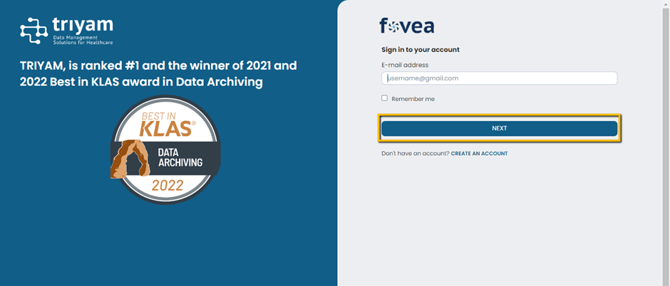
Once you've accessed the Access Unify® | Health login page, input your username, which is the email address registered with your Access Unify® | Health account. Then, click on the Next button to proceed.
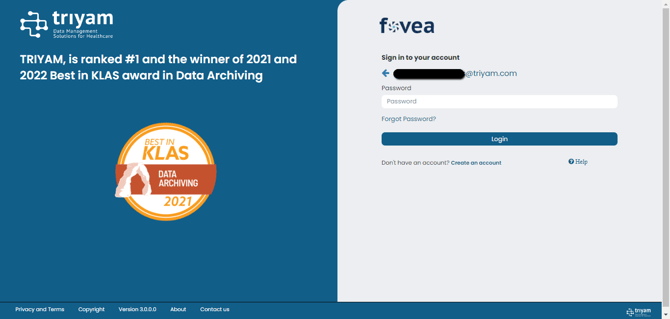
Enter your password associated with your Access Unify® | Health account, and click on the Login button to proceed.
You will be prompted to enter an OTP (One Time Password) for additional security. Input the OTP generated by your preferred authentication method and click Verify.
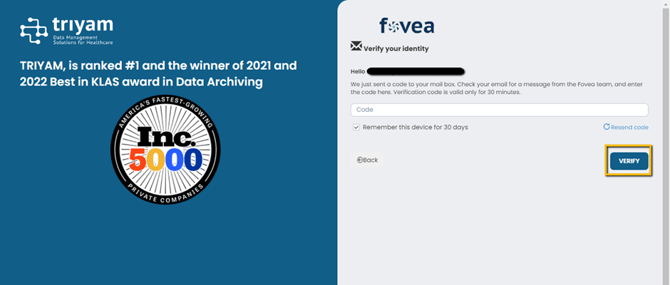
As an optional step, you have the choice to select the "Remember this device for 30 days" checkbox. Enabling this feature allows you to log in directly without needing an OTP on the same device for the specified duration. Please note that Access Unify® | Health will recognize the device unless the user clears the browser's cookies and cache.
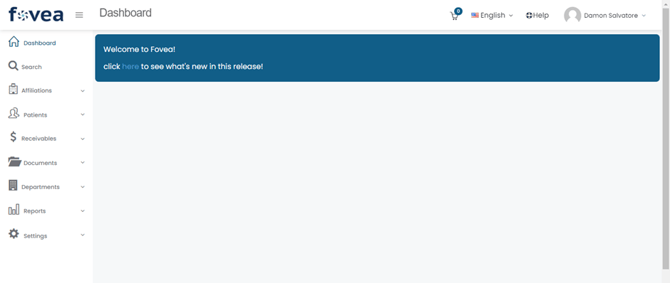
For further assistance, please contact your in-house Access Unify® | Health administrator.