Using automatic redirection
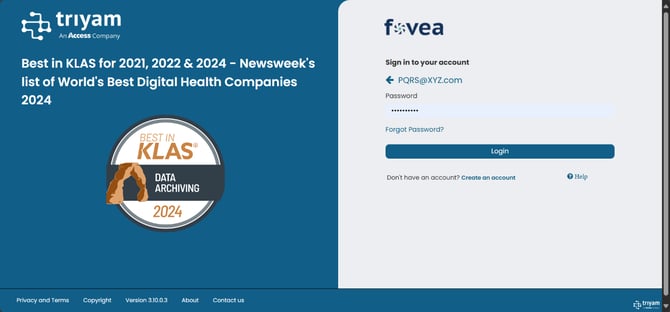
Access Unify® | Health Login Page security has been enhanced with two step data validation. SSO login for AD users is also enhanced, users will be automatically redirected to the application link based on their source system permission settings. This document explains the new two-step data validation process.
Single Sign On (SSO) feature in Access Unify® | Health allows user to sign on to Access Unify® | Health using your organization's Active Directory or through your EHR application. SSO can be mandatory or optional for your organization. For more information on how Access Unify® | Health is configured for your source system, please contact your in-house Access Unify® | Health administrator.
If your organization is using Active Directory (AD) for SSO authentication then you need to login to your AD domain before accessing Access Unify® | Health else, you will be prompted to log in to your AD. For details on how to log in to your organization's AD, please contact your in-house Access Unify® | Health administrator.
Tip: Basic Authentication vs Single Sign On (SSO)
Users can sign into Access Unify® | Health using basic authentication, where they can enter their username and password. Alternatively, users can Access Unify® | Health via Single Sign On (SSO) from Active Directory or through your EHR application. For more information on how Access Unify® | Health is configured for your source system, please contact your in-house Access Unify® | Health administrator. For documentation on how to Login via SSO please refer to “SSO login help page” in online help.
Tip: Cloud vs On-premises
Access Unify® | Health can be accessed from the cloud hosted by Triyam or can be on-premises. For the cloud version, access the URL https://livefovea.com/. For the on-premises version URL, please contact your in-house Access Unify® | Health administrator.
Option 1: Only SSO Login
If your organization allows only SSO Login follow these steps
In your web browser, launch the Access Unify® | Health URL https://livefovea.com/
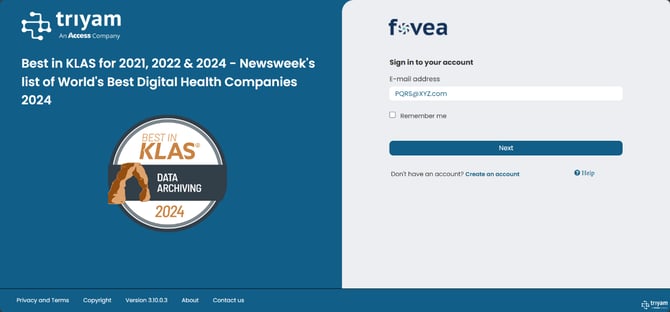
Enter the username, then click on the 'Next' button
Username: Enter the email address which you used for registering your account in Access Unify® | Health as the username.
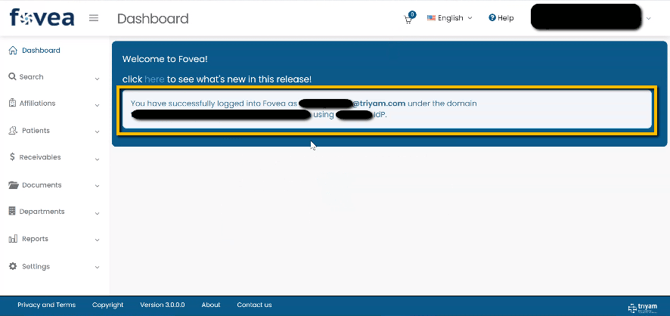
If you are already logged in to your organization's domain, after authentication you will be redirected to Access Unify® | Health dashboard.
Option 2: Either SSO or Basic Authentication Login
If your organization allows both SSO and password login follow these steps
In your web browser, launch the Access Unify® | Health URL https://livefovea.com/
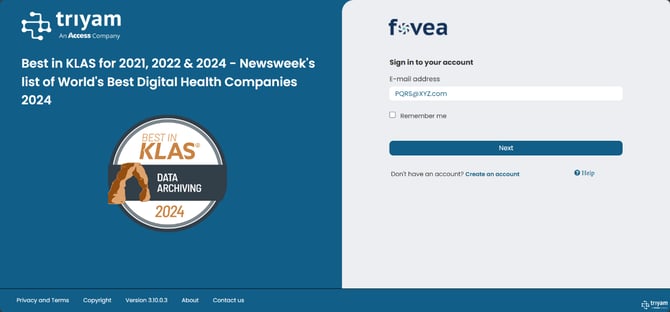
Enter the username, then click on the Next button. Here, you will be asked to select sign in option.
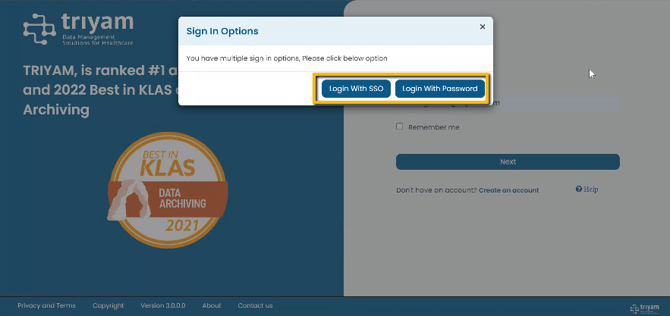
If you select Login via SSO, your user will be authenticated with your domain and redirected to Access Unify® | Health dashboard.
If you select Login via Password, you will be redirected to password entry screen.